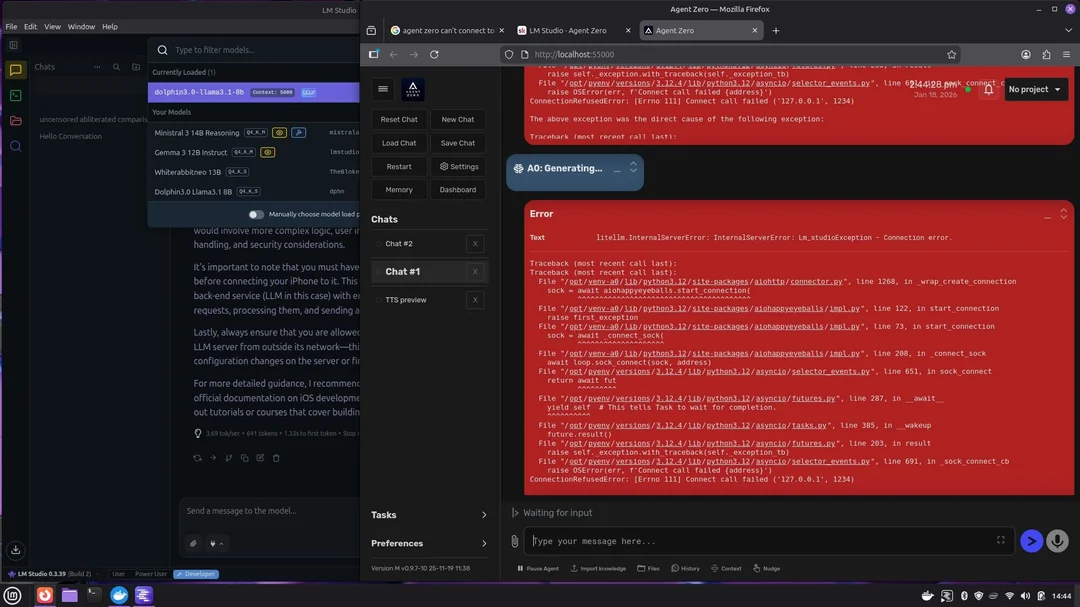

As i recently had issues with connecting Agent Zero, I gathered all my findings sources and applied solutions and created this article. It is shockingly difficult to get it going. So here feel free to shorten your local setup with my guide.
1. What the community is saying (sources)
| Source | Key Takeaway |
|---|---|
| Agent Zero Discussions #357 (GitHub) | • Use the full URL shown in the Developer tab of LM Studio when the server is running. • Append /v1 to the endpoint – Agent Zero expects that exact path to recognise the API. |
| Official “Get Started” docs (agent0.ai) | • Agent Zero runs best inside a secure Docker container (recommended for all OSes). • The container should expose the API port (default 5000) and have the correct environment variables set. |
| YouTube tutorial – “Agent Zero Local with Ollama” | • Shows how to point Agent Zero at a locally‑running Ollama model via the same /v1 endpoint.• Demonstrates setting a local API key (any string works for Ollama) and selecting the correct model name. |
| Blog – Deploying LLMs Locally (Ollama + LM Studio) | • Both platforms expose a local REST API; they can be used interchangeably once the URL format is correct. • Performance differences stem from how each server schedules inference (GPU off‑load, thread count, context length). |
| Medium – Running AI Agents Locally | • When using an agent framework (like Agent Zero) the LLM call goes through an extra layer of routing, which can add latency. • Tuning the underlying model server (Ollama or LM Studio) is essential for speed. |
2. Prerequisites
- Docker installed and running on your host (Linux Mint in the example).
- Agent Zero container up and healthy (
docker psshows it). - Either LM Studio or Ollama installed locally, with a model you intend to use (e.g.,
llama2,mistral). - Ability to access the host’s network from the Docker container (use Docker’s default bridge or an explicit network).
3. Configuration Steps
3.1. Start the LLM server (LM Studio or Ollama)
| Platform | Typical command / UI step |
|---|---|
| LM Studio | 1️⃣ Launch LM Studio. 2️⃣ Open Developer → API Server. 3️⃣ Note the URL – it will look like http://127.0.0.1:1234/v1.4️⃣ Keep this server running; do not change the default port ( 1234). |
| Ollama | 1️⃣ Pull/run a model, e.g., ollama run llama2.2️⃣ Ollama automatically exposes an API at http://localhost:11434/v1. |
Both servers serve on /v1 by default; do not modify this path.
3.2. Expose the correct endpoint to Agent Zero
In your Docker compose / run command for Agent Zero, add an environment variable (or command‑line flag) that points to the LLM server:
# Example using Docker run
docker run -d \
  --name agent-zero \
  -e LLM_API_URL="http://host.docker.internal:5000/v1" \   # LM Studio endpoint
  -e LLM_MODEL_NAME="llama2" \                           # exact model name as shown in LM Studio / Ollama UI
  -e LOCAL_API_KEY="any-string-you-want" \               # optional; Ollama ignores it, LM Studio may require a token
  agentzero/agent-zero:latest
Important:
- Use
host.docker.internal(or the host’s LAN IP) so the container can reach the host‑side LLM server. - Append
/v1to the URL – Agent Zero will reject requests without it.
3.3. Model name & context length
| Issue | Fix |
|---|---|
| Misspelled model name (e.g., “Llama‑2‑Chat” vs “llama2”) | Copy the exact name from LM Studio’s Model dropdown or Ollama’s ollama list. |
| Context length too low → slow responses | In LM Studio, open Settings → Advanced → Context Length and set it to a higher value (e.g., 4096). In Ollama you can launch the model with --ctx-size 4096 if needed. |
3.4. API Key / Authentication
- Ollama: No key is required; any string passed as
Authorization: Bearer <key>works, but it’s optional. - LM Studio: You can leave the key empty for a local dev setup, or set a custom token under Settings → Security. The same token must be supplied in Agent Zero’s
LOCAL_API_KEYenv var if you enable authentication.
3.5. Network / Docker configuration
# docker-compose.yml snippet
version: "3.8"
services:
  agent-zero:
    image: agentzero/agent-zero:latest
    environment:
      - LLM_API_URL=http://host.docker.internal:5000/v1
      - LLM_MODEL_NAME=llama2
      - LOCAL_API_KEY=mykey
    ports:
      - "8080:8080"   # optional UI port
    networks:
      - agent-net

  # Optional dedicated network so only Agent Zero can talk to the host LLM
  agent-net:
driver: bridgehost.docker.internalworks on Linux when Docker is started with the--add-host=host.docker.internal:host-gatewayflag, or you can replace it with the host’s LAN IP (e.g.,192.168.1.10).
4. Performance‑Boosting Tips
| Symptom | Likely Cause | Remedy |
|---|---|---|
| Responses take 2–3 minutes (vs snappy 13‑15 tps in LM Studio) | Extra routing through Agent Zero + default inference settings. | • Increase the number of inference threads (OMP_NUM_THREADS=4 or set num_thread in Ollama).• Enable GPU offload if your host has an NVIDIA GPU (install nvidia-docker2 and run containers with --gpus all). |
| Low token‑per‑second (tps) | Model loaded with a small context size or CPU‑only inference. | • Raise the context length. • Use a model variant that is optimized for speed (e.g., llama2:13b-chat-q4_0). |
| Long “thinking” before first token | Agent Zero performs a pre‑call to validate the API, then waits for the server to be ready. | • Ensure the LLM server is started before launching the Agent Zero container. • Add a small health‑check script that retries the /v1/models endpoint until it returns 200. |
| Inconsistent results between LM Studio & Ollama | Different default generation parameters (temperature, top‑p). | • Explicitly set these in Agent Zero’s GENERATION_CONFIG env var (e.g., {"temperature":0.7,"top_p":0.9}) to match the UI settings you prefer. |
5. Quick Troubleshooting Checklist
- Endpoint reachable?
curl -X GET http://host.docker.internal:5000/v1/modelsShould return a JSON list of models.
- Correct model name?
Verify the string matches exactly what appears in LM Studio/Ollama UI. - API key / auth – If you set
LOCAL_API_KEY, make sure it’s passed to both Agent Zero and the LLM server (if security is enabled). - Port conflicts – Ensure port 5000 on the host isn’t already used by another service.
- Logs – Check Docker logs (
docker logs agent-zero) for any “Failed to connect” or “Invalid model” messages. - Performance metrics – Use
docker statsto verify CPU / memory usage; if the container is starved, consider allocating more resources.
6. Example End‑to‑End Setup (Linux Mint)
# 1️⃣ Pull and run LM Studio (API enabled)
#    – Launch LM Studio, enable "Developer → API Server", note the URL: http://127.0.0.1:5000/v1

# 2️⃣ Create a Docker network
docker network create agent-net

# 3️⃣ Run Agent Zero with required env vars
docker run -d \
  --name agent-zero \
  --network agent-net \
  -e LLM_API_URL="http://host.docker.internal:5000/v1" \
  -e LLM_MODEL_NAME="llama2" \
  -e LOCAL_API_KEY="dummykey" \
  -p 8080:8080 \
  agentzero/agent-zero:latest

# 4️⃣ Verify connectivity
curl http://host.docker.internal:5000/v1/models   # should respond

# 5️⃣ Interact with Agent Zero (via its UI on localhost:8080 or API)
If you later switch to Ollama, just change LLM_API_URL to http://host.docker.internal:11434/v1 and adjust the model name accordingly.
7. Where to Find More Info
- GitHub Discussion #357 – Detailed notes on URL format &
/v1requirement. - Agent Zero Official Docs – Installation, Docker best practices.
- YouTube: “Agent Zero Local with Ollama” – Visual walkthrough of the exact UI steps.
- Blog: Deploying LLMs Locally (Ollama + LM Studio) – Comparison of performance knobs.
8. Final Thoughts
- The slow response times you observed are typically a combination of extra routing and default inference settings, not an inherent limitation of Agent Zero itself.
- By ensuring the correct API endpoint (
/v1), using the exact model name, and tuning context length / thread count, most users see a dramatic speed‑up (often back to the 10‑plus tokens‑per‑second range). - If you plan to run the agent in production, consider adding a health‑check loop before sending requests, and allocate GPU resources via
nvidia-dockerfor the best latency.
Happy hacking, and enjoy a snappy local AI experience! 🚀